Why have I got an email saying "ConstantGraph is processing too many requests for your subscription"?
What causes this?
When you connect a data source such as SmartThings to your ConstantGraph account, event data from your devices is passed to ConstantGraph and recorded in real time. If you have a large number of devices, or one particularly active device that reports changes very frequently, the volume of data being submitted can exceed the processing limit for your current subscription level.
The data processing limits for each subscription level are listed on the Pricing page.
What happens when the limit is exceeded?
Once the limit is reached:
- Incoming data points are ignored and not recorded.
- Any affected device is shown in an error state on the channel list.
- An in-app notification is displayed, advising that data is being discarded due to the limit. This notification continues to appear for as long as the issue persists.
- An email notification is sent to alert you. To prevent inbox flooding, email notifications are throttled to once every few weeks.
Silencing the notifications
If you wish to stop receiving emails and in-app messages about this limit, you can disable them in the Messages section of your account settings.
Note: Disabling notifications does not resolve the underlying issue — data will continue to be discarded until the root cause is addressed.
How to resolve the issue
There are three approaches to resolving the rate limit:
1. Upgrade your subscription
Upgrading to the next subscription tier increases your data processing allowance, which may better suit the scale of your setup. You can manage your subscription from the Account page.
2. Disable specific data types
You can stop collecting data for individual data types via the Data Types configuration page . This is useful when you are not interested in a particular measurement — for example, disabling humidity collection while continuing to record temperature from the same sensor. Disabled data types do not count towards your allowance.
3. Disable specific channels
You can disable individual channels or groups of channels via the Configuring Channels page. This is useful if a specific channel is generating a disproportionate amount of data that you do not need. Disabled channels do not count towards your allowance.
Identifying which channels are generating the most data
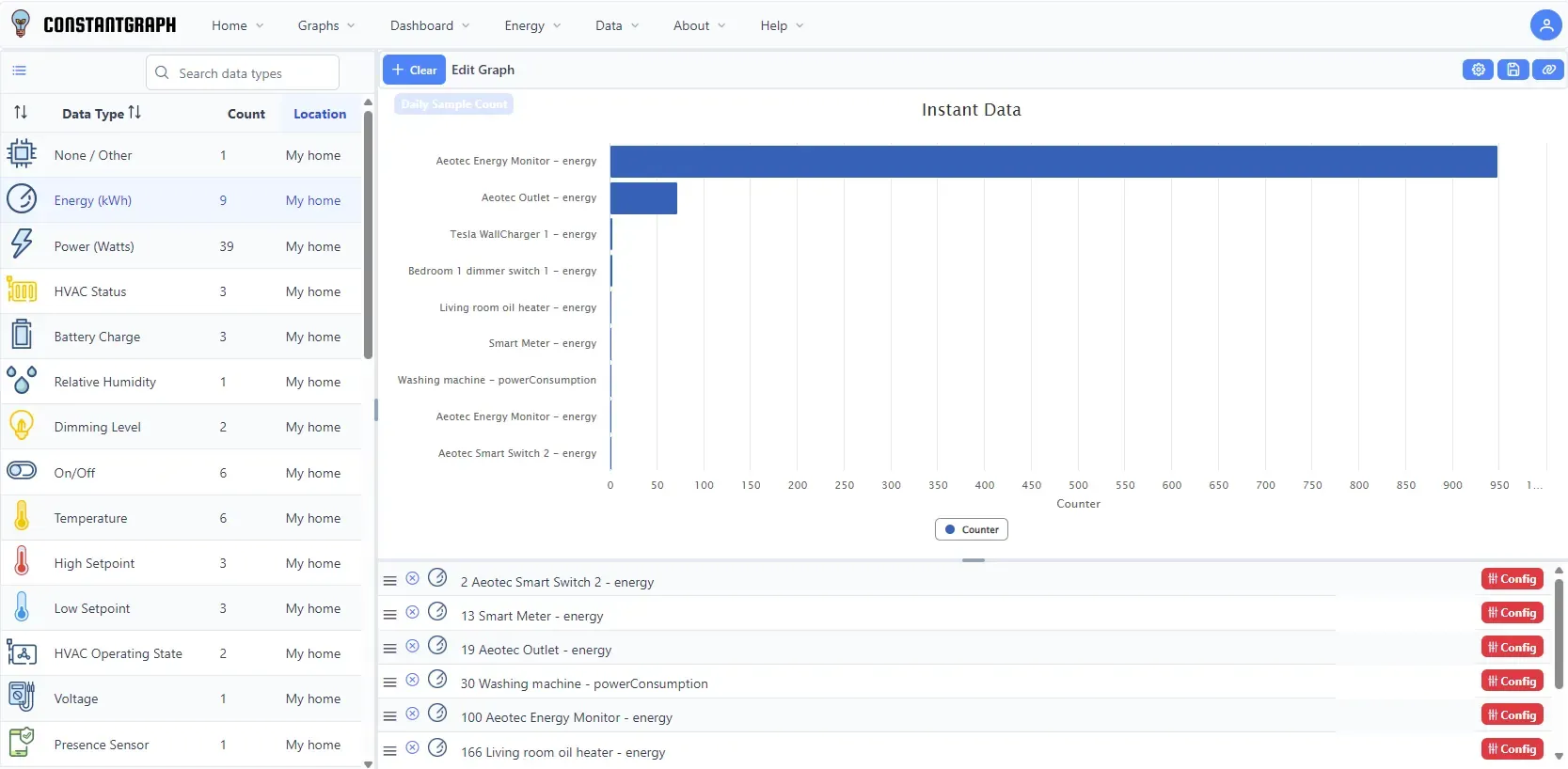
Before disabling a channel or data type, it is helpful to identify which channels are contributing the most data points. To do this:
- Open a new Instant Data graph.
- Select multiple channels (up to the limit for your subscription).
- Set the chart type to Bar Chart.
- Set the aggregation to Daily Sample Count.
- Under the sort options, select Sort All.
The resulting chart will rank your channels by sample count, making it straightforward to identify the highest-volume sources.