
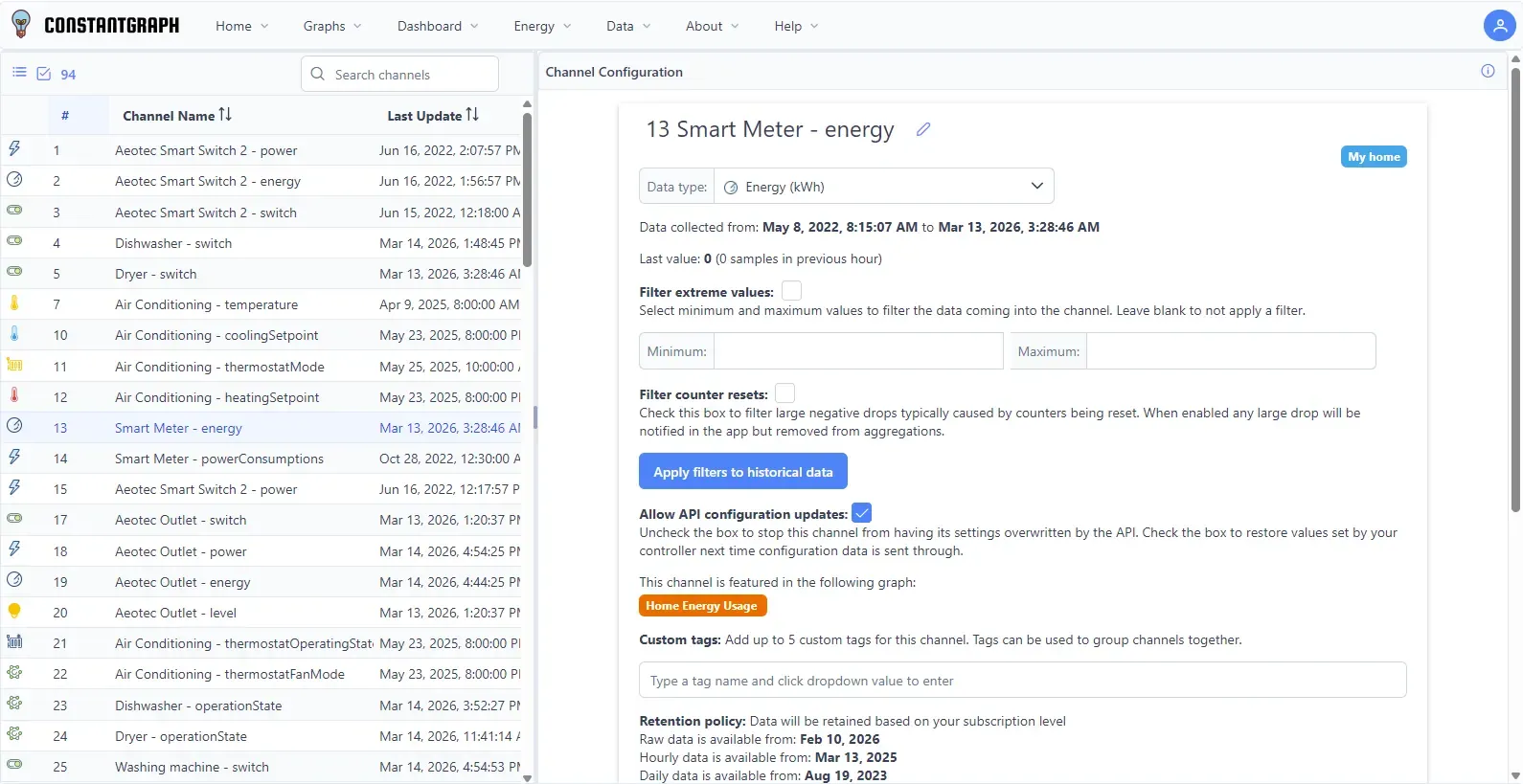
The channel configuration page allows each data channel to be customised. Select a channel from the list on the left to view and edit its settings.
Channel Settings
When a single channel is selected, the following settings are shown:
- Channel name — click the pencil icon next to the channel name to edit it inline. The channel number cannot be changed, as it is used to uniquely identify the data.
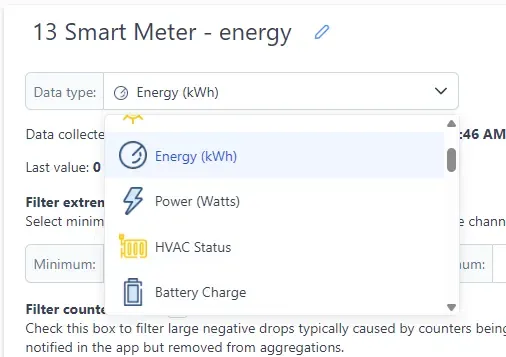
- Data type — Data types are determined automatically, however, you can also override with your own type. The selected type determines which icon is shown in the channel list and which units and axes are available on graphs and the behaviour of aggregation and disaggregation. The data type cannot be changed for channels created by the inbuilt disaggregation process.
- Data collected from — shows the date range of data stored for this channel, from the earliest data point collected to the most recent.
- Last value — the most recently received value, along with the number of data samples received in the previous hour.
Filtering
Filtering options are not available for channels created by the disaggregation process.
- Filter extreme values — enable this checkbox to apply minimum and/or maximum bounds to incoming data. Any value outside the configured range will be discarded and not stored. Leave either bound blank to not apply that limit. Useful to automatically remove data errors caused by transmission noise over low powered networks such as Z-wave and Zigbee.
- Filter counter resets (Energy (kWh) channels only) — when enabled, large negative drops in readings caused by energy meter counter resets are filtered out automatically. Affected data points are flagged in the app but excluded from aggregations.
- Apply filters to historical data — once your filter settings have been saved, click this button to apply the new filters to data that has already been stored. The configuration must be saved first before this button becomes available. A warning will be shown if no existing data points would be affected by the current filter settings. As it is not always possible to reconstruct aggregated data once the original raw data has been deleted, some older data points may be estimated where data has been removed.
Allow API Configuration Updates
When checked, configuration data sent via the API (such as channel name and data type) can overwrite the settings configured here. Uncheck the box to lock these settings and prevent any API call from overwriting them. Check the box again to allow API-driven values to be restored on the next configuration update from your hub or integration.
Graph List
If the channel is used in any saved graphs, they will be listed here. Click on a graph tag to navigate directly to that graph for editing.
Custom Tags
Up to 5 custom tags can be added to each channel. Tags can be used to group channels together and to filter the channel list. Type a tag name in the box and select a value from the dropdown to add it. Existing tags from other channels will be suggested as you type.
Retention Policy
Shows the earliest date from which raw, hourly aggregated, and daily aggregated data is available for this channel. The retention period is determined by your subscription level. Once data has been aggregated and the retention period has passed, the original raw data is removed.
Channel Disabled
Check this box to stop collecting new data for this channel and hide it from the channel list. The existing data is retained and the channel can be re-enabled at any time. Useful if you are exceeding your data change allowance for your subscription as disabled channels do not count towards your quota.
Actions
- Save — saves all channel settings. The button is only active when there are unsaved changes.
- Download raw data file — exports the raw data for this channel as a downloadable file. Note that the feature is limited to a maximum of 10,000 data points.
- Delete channel — permanently deletes the channel and all of its data. This action cannot be undone.
Selecting Multiple Channels
Multiple channels can be selected simultaneously (up to the limit for your subscription). When more than one channel is selected, a summary panel is shown instead of the individual settings panel.
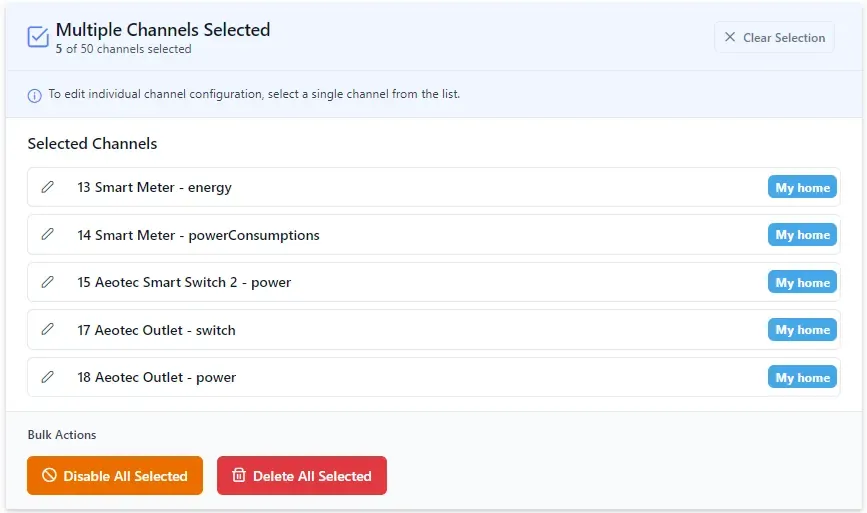
The summary panel shows the list of selected channels and provides the following bulk actions:
- Disable All Selected — disables all selected channels at once.
- Delete All Selected — permanently deletes all selected channels and all of their data. This action cannot be undone.
To edit the settings for an individual channel while multiple are selected, click the pencil icon next to the channel name. This will navigate to a view showing just that channel's configuration.
Axis Configuration
Below the channel settings, the axis configuration panel allows the chart axis to be customised for each unit of measure available for the channel's data type. Note that these settings apply globally to all channels that share the same data type — changing the axis label or scale here will affect all channels of that type.
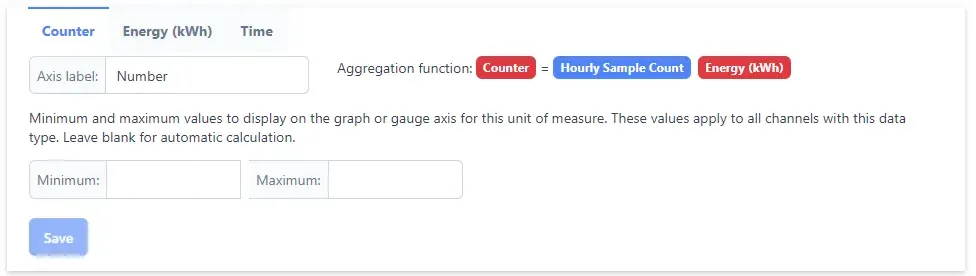
Where a data type has multiple units of measure (for example kWh and Watts for an Energy channel), each unit has its own tab. Tabs marked with a star indicate the primary unit for the data type, and tabs marked with an info icon indicate the unit currently selected on the graph menu.
- Axis label — the title displayed on the chart axis when this unit is selected.
- Minimum— the minimum value to display on the graph or gauge axis for this unit. Leave blank to calculate automatically based on the data.
- Maximum — the maximum value to display on the graph or gauge axis for this unit. Leave blank to calculate automatically based on the data.
Note that the axis limits are "soft" limits and will be overridden if the data shown exceeds the axis minimum or maximum value. The displayed axis values may also be rounded to suit the scale. Click Save to apply axis changes.