
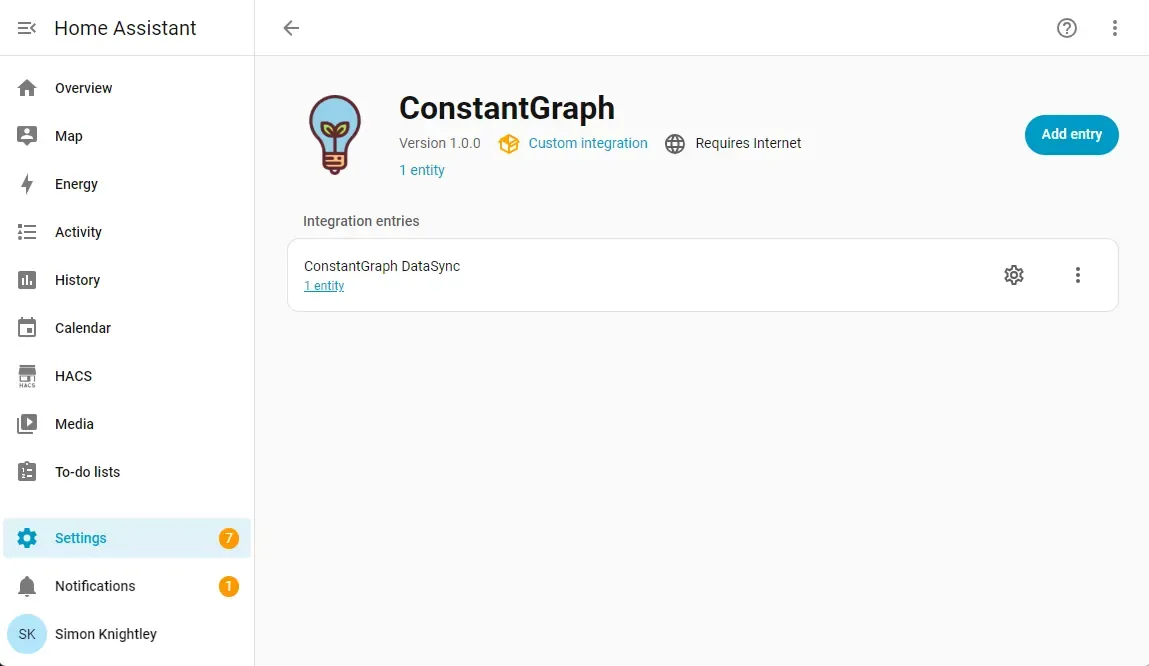
Home Assistant is the world’s most powerful automation engine, and ConstantGraph is the ultimate lens through which to view your data. While Home Assistant excels at control, ConstantGraph specializes in long-term logging, advanced multi-device analysis, and professional-grade graphing.
Why integrate Home Assistant with ConstantGraph?
Home Assistant's built-in history is great for quick checks, but ConstantGraph takes your data to the next level:
- Infinite Retention: Don't let your database grow too large or purge your history. Store years of data securely in the cloud.
- Complex Comparisons: Overlay temperature sensors from different rooms, compare energy usage against outdoor weather, or track humidity trends across months.
- Performance Insights: Identify "chatty" devices that are flooding your Z-Wave or Zigbee networks.
- No Configuration Overhead: Once the plug-in is installed, your entities are automatically synced and ready for analysis.
How to Install the ConstantGraph Plug-in
The ConstantGraph integration for Home Assistant allows you to securely stream your sensor data to our platform with minimal setup.
1. Get your API Key
- Log into your ConstantGraph account .
- Navigate to Accounts -> Locations, Keys and Tokens
- Clock Add New Location and select Home Assistant as the type.
- Copy your unique API Key. You will need this for the Home Assistant configuration.
2. Installation via HACS (Recommended)
The easiest way to install and maintain the plug-in is through the Home Assistant Community Store (HACS).
- Open your Home Assistant dashboard.
- Go to HACS -> Integrations.
- Click the three dots in the top right corner and select Custom repositories.
- Paste the URL: https://github.com/constantsphere/ha-constantgraph
- Select Integration as the category and click Add.
- Find "ConstantGraph" in the list and click Download.
- Restart Home Assistant.
3. Manual Installation
If you do not use HACS, you can install the files manually:
- Download the latest release from GitHub.
- Copy the custom_components/constantgraph folder into your Home Assistant /config/custom_components/ directory.
- Restart Home Assistant.
4. Configuration
Once the files are installed and HA has restarted, you must link your account:
- Go to Settings -> Devices & Services.
- Click + Add Integration.
- Search for ConstantGraph.
- When prompted, enter the API Key you retrieved in Step 1.
- Follow the on-screen prompts to select which sensors or entities you wish to log.
What’s Next?
Once configured, your data will begin flowing to ConstantGraph. Whilst it will work on any subscription level including the Basic (free) tier, you will get improved update frequency, data retention and historical data loading on higher tiers.
- View your Dashboard: Log in to ConstantGraph to see your live data feed.
- Create Charts: Use our Graph tools to create multi-axis charts.
- Analyze Trends: Use our analysis tools to find inefficiencies in your heating or cooling systems.
Need help or want to help define what features we should prioritise? Email us at contact@constantgraph.com .