
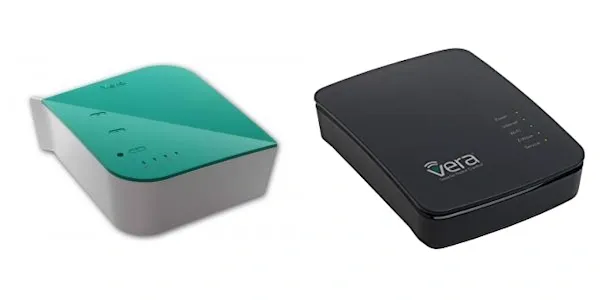
Data can be added to the system through the Constant Graph Plug-in for the Vera home automation platform which can be downloaded from the app store.
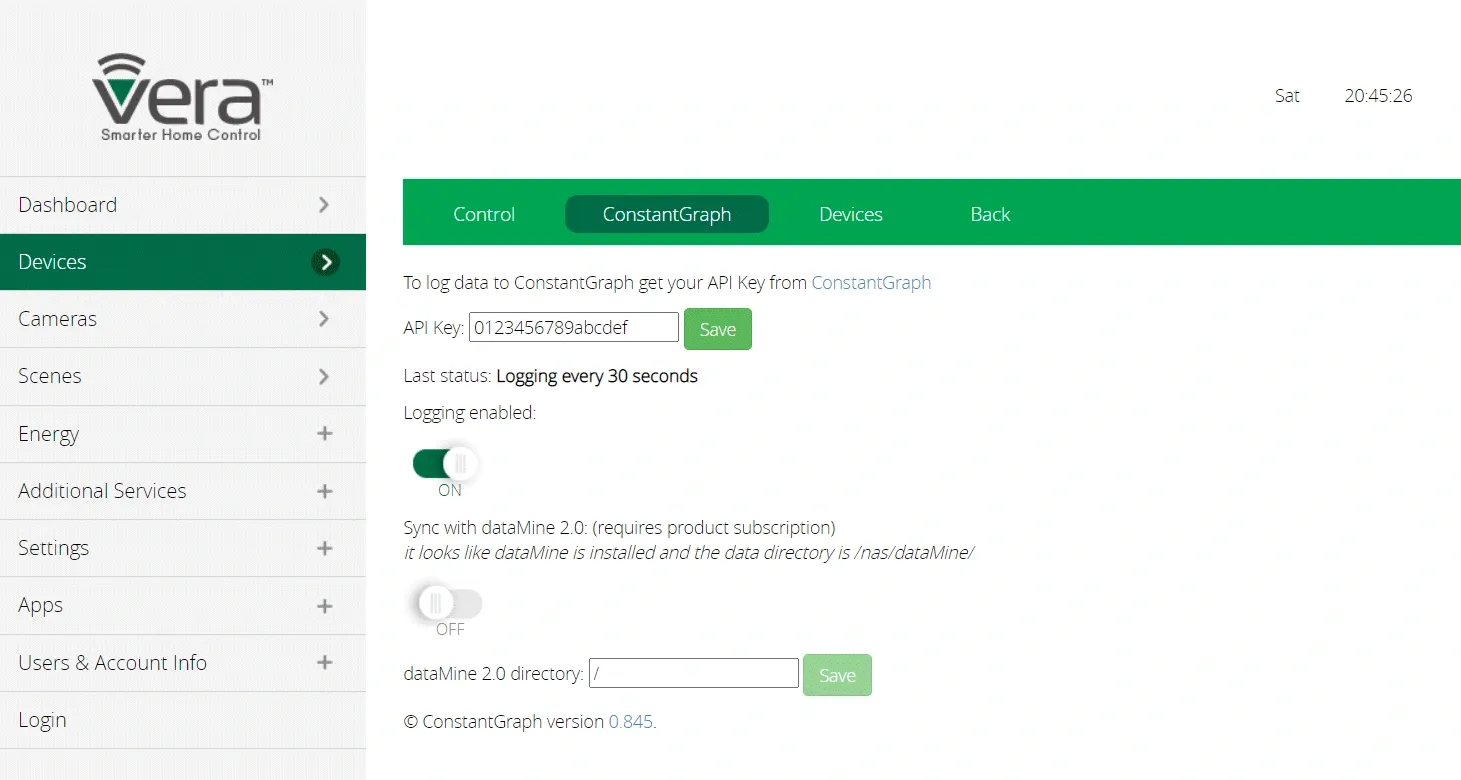
Once installed, go to the ConstantGraph tab of the new device and add the API key. The API key is available from the Account page of this site, once you have signed-up and logged in. If you have not yet generated a key, click on the Create new API key button. Copy the key and paste it into the API key box on the plug-in shown below - it should be 16 characters long.
The plug-in provides two modes of operation; synchronising with data collected from the dataMine 2 plug-in or sending data from a manually selected list of device variables.
Synchronising with dataMine 2
To synchronise with dataMine 2, you will need to sign-up for the Historic Analysis subscription which allows for historic data to be added via the API. Enter the directory that your dataMine database file is stored. If you have the dataMine plug-in installed, the DataSync plug-in will attempt to locate the dataMine data directory for you. Once set, enable logging to start the synchronisation process.
If you have any saved graphs in dataMine they will be copied over to ConstantGraph. Modifying any of the saved graphs in dataMine will cause all graphs to be resynchronised. Graphs saved in dataMine will overwrite any graphs saved in ConstantGraph with the same name. However, deleting a saved graph in dataMine will not cause it to be deleted in ConstantGraph. To avoid changes to saved graphs being overwritten in ConstantGraph by dataMine simply rename them.
Historic data will start to synchronise immediately, although the oldest data is transferred before current data so it may be a few minutes to several hours before current data starts to show depending on the amount of data stored.
Manually selecting device variables
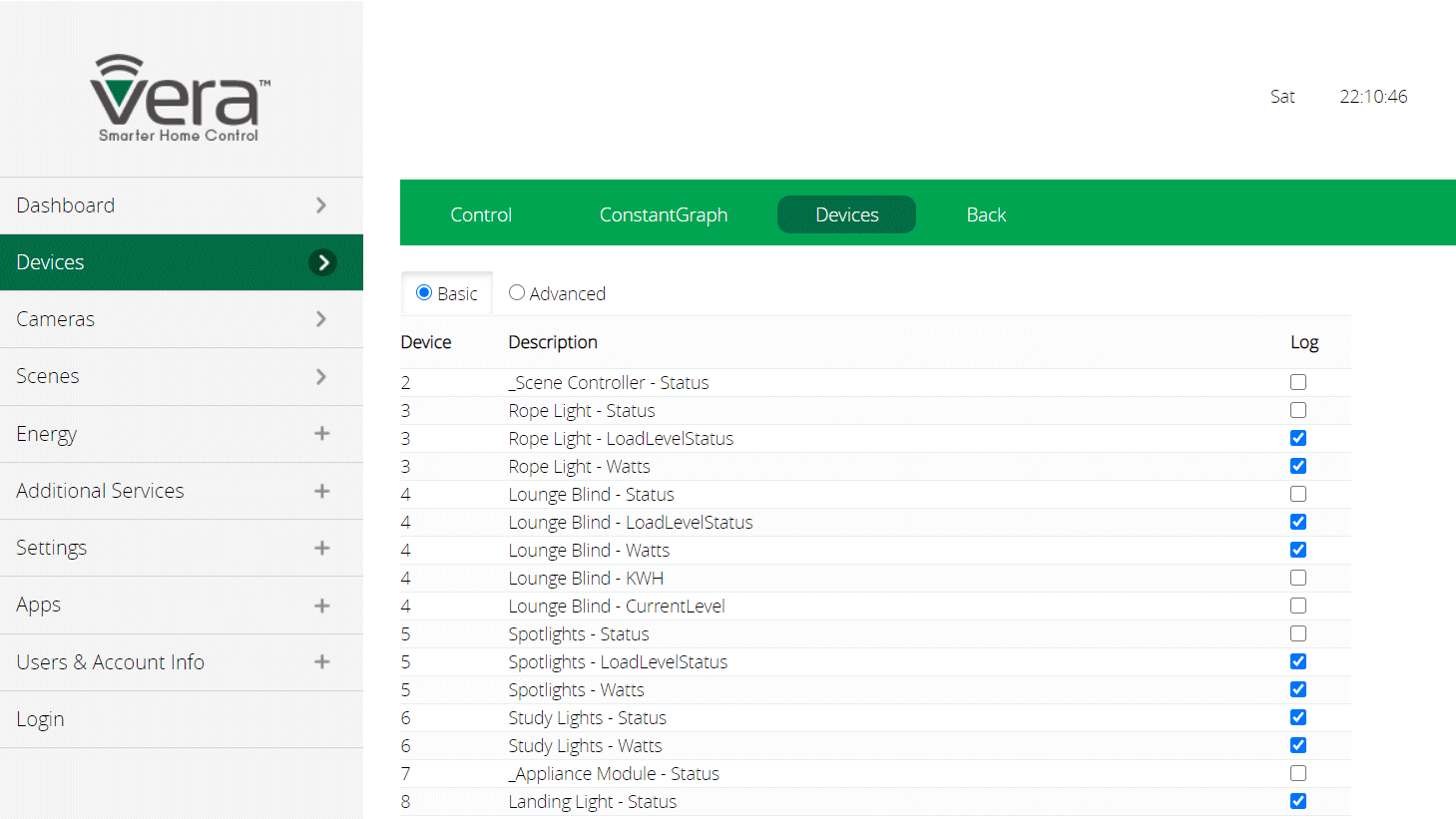
To manually select device variables, click the Devices tab shown below. The list will show the variables from any devices from the following common types:
|
Item |
Description |
|---|---|
|
Door lock status |
urn:micasaverde-com:serviceId:DoorLock1 - Status |
|
Light level |
urn:micasaverde-com:serviceId:LightSensor1 - CurrentLevel |
|
Energy |
urn:micasaverde-com:serviceId:EnergyMetering1 - KWH |
|
Power |
urn:micasaverde-com:serviceId:EnergyMetering1 - Watts |
|
Battery level |
urn:micasaverde-com:serviceId:HaDevice1 - BatteryLevel |
|
Humidity |
urn:micasaverde-com:serviceId:HumiditySensor1 - CurrentLevel |
|
Alarm armed |
urn:micasaverde-com:serviceId:SecuritySensor1 - Armed |
|
Alarm tripped |
urn:micasaverde-com:serviceId:SecuritySensor1 - Tripped |
|
Dimming level |
urn:upnp-org:serviceId:Dimming1 - LoadLevelStatus |
|
Switch status |
urn:upnp-org:serviceId:SwitchPower1 - Status |
|
Aircon state |
urn:upnp-org:serviceId:HVAC_UserOperatingMode1 - ModeStatus |
|
Temperature |
urn:upnp-org:serviceId:TemperatureSensor1 - CurrentTemperature |
|
Heating max |
urn:upnp-org:serviceId:TemperatureSetpoint1_Heat - CurrentSetpoint |
|
Heating min |
urn:upnp-org:serviceId:TemperatureSetpoint1_Cool - CurrentSetpoint |
|
Generic sensor |
urn:micasaverde-com:serviceId:GenericSensor1 - CurrentLevel |
If the variable you want isn't in the list, select the Advanced tab and find the required variable in the complete list of device variables. The variables will be polled for changes initially every 30 seconds. Variables are only sent if they have changed since the previous poll. Depending on how many variables are selected and how frequently they change, the polling period will be progressively increased up to a maximum of 10 minutes to ensure the rate limits of the subscription are not exceeded.
Migrating to new service
The API that the Vera app connects to will be switched off in August 2025. To maintain access to ConstantGraph through the Vera app, it must be updated to point to the new API.
To updeate your App go to your Vera homepage and select Devices to get to http://
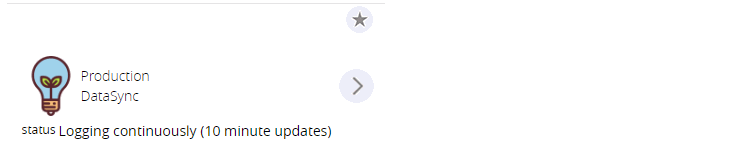
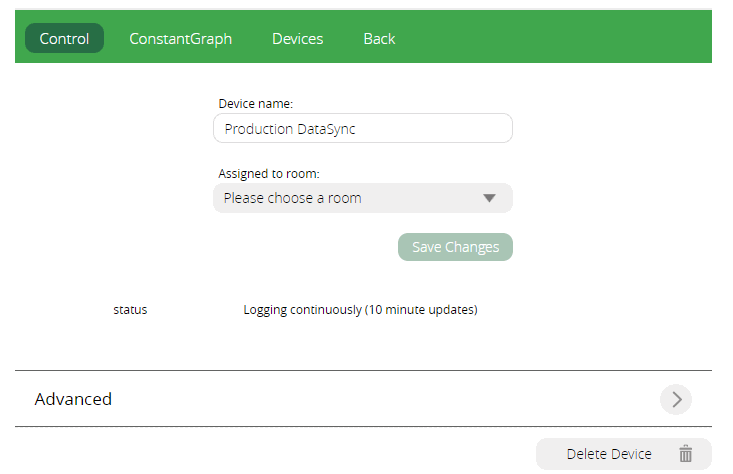
In the Advanced section, click on the right arrow:
Find the apiURL section, click edit and enter https://api.constantgraph.com/data/

The new setting will take effect next time the box is restarted.