
Home Summary Dashboard Overview
The Home Summary dashboard page gives you a quick way to understand what’s happening in your locations without jumping around the app. It’s built to give you context fast, with simple controls for switching locations and checking dashboards. The page is optimised for both mobile and desktop view and is your landing page when you log in. Get to this page via the Home > Home Summary menu item.
What This Page Does
The Home page combines three key tools into a single view:
- A location tab switcher for jumping between controllers or locations.
- A summary panel that provides a quick snapshot of the selected location.
- A dashboard preview and editor access for deeper analysis.
The goal is simple: see the status of a location at a glance, then dive deeper only if you need to.
Location Tabs (Left Column)
A tab bar listing all available locations. Each tab represents one location.
- Click any tab to switch locations.
- The summary panel updates instantly to match the selected location organised by data type.
- Use the edit pencil to select which data types to include and which order they appear in.
You can move between locations without leaving the page, making comparisons and quick checks effortless.
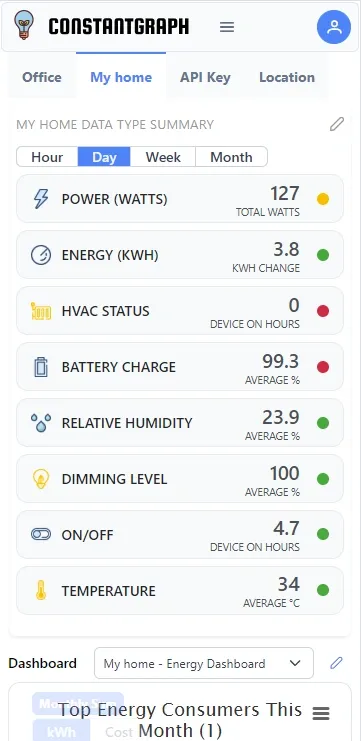
Location Summary Panel
A condensed summary of the selected location. It’s designed for quick scanning and awareness.
- A compact overview of the location’s key status indicators, metrics, and recent signals.
- Status indicators show how recently the data was updated.
- Use the edit pencil to select which channels should contribute to the summary metric and graph view.
This removes the need to open multiple views just to understand what is happening at a location. You can spot issues or patterns immediately.
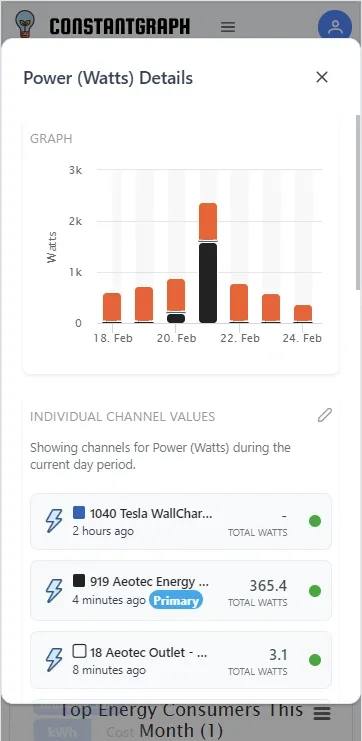
Dashboard Preview (Right Column)
A live preview of your selected dashboard, embedded directly in the Home page.
- If a dashboard exists, it loads automatically.
- If multiple dashboards are available, use the dropdown to switch between them.
You can verify or monitor the dashboard without switching screens — perfect for quick checks.
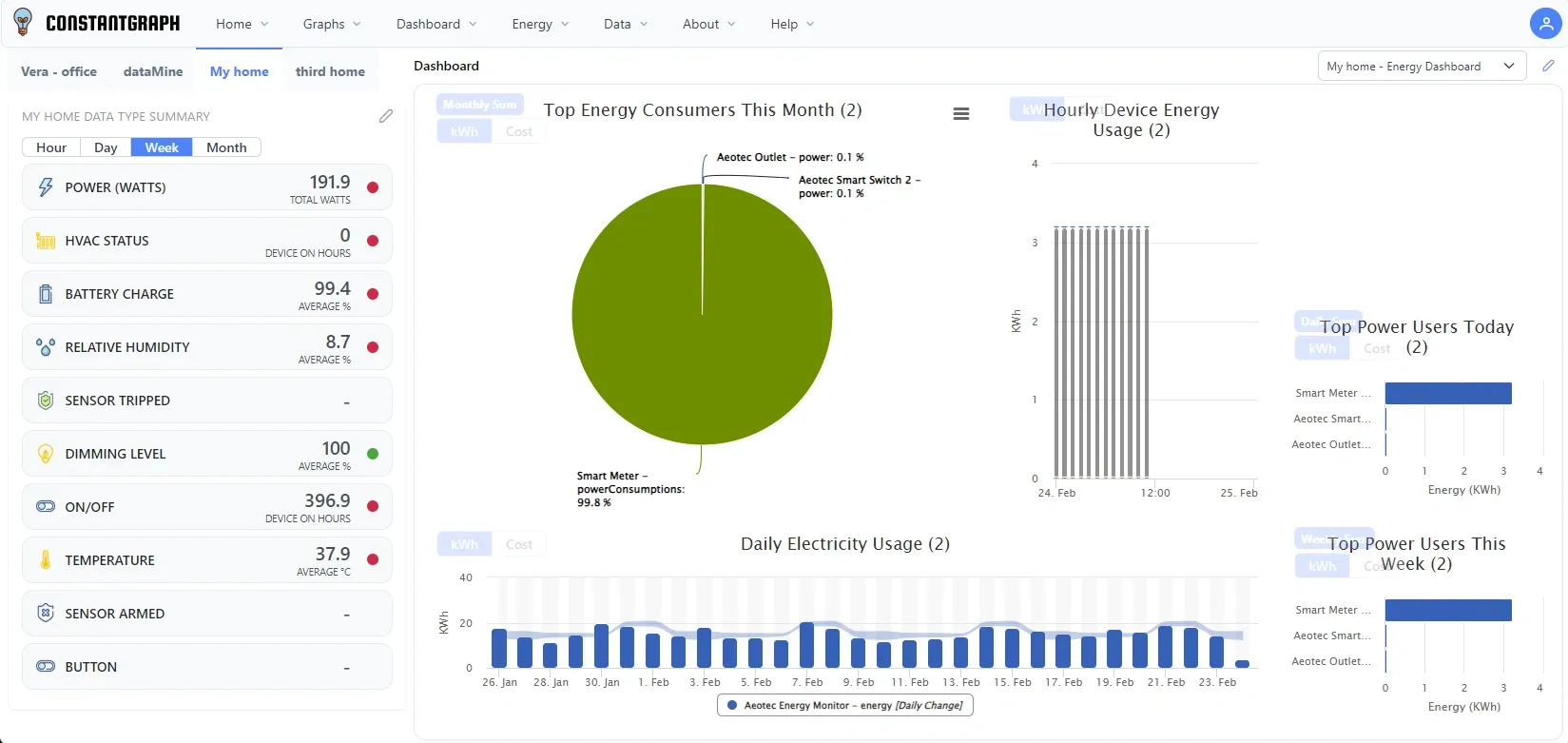
Dashboard Selector
A dropdown that lists all available dashboards for the current location.
- Click the dropdown.
- Select a dashboard.
- The preview updates instantly.
- Use the pencil icon to open the current dashboard in the dashboard builder
This lets you compare dashboards quickly and ensures the right dashboard is always in view.
Avoid Context Switching
This Home page is intentionally designed to reduce context-switching:
- One page, full context. You can see status, summary, and dashboards together.
- Faster decisions. You don’t need to navigate to multiple screens just to understand a location.
- Simpler onboarding. Quickly learn the system and find what you need.
- Instant editing access. Edit dashboards directly from the preview without extra steps.
In short, this page is a single, powerful command center for every location.